Override Deposit Policy/Amount
Users can override and modify the deposit policy/amount of reservations from the following screens:
-
Book a Reservation ➜ Deposit tab
-
Book a Reservation ➜ Estimated Charges tab
-
Reservation ➜ Estimated Charges section
Payment & Deposit Tab of Book a Reservation Screen
When users book a reservation, the deposit amount for the reservation can be modified or waived in the Payment & Deposit tab of the Book a Reservation screen. When users modify/waive the deposit amount to be collected in the Collect field in the Remaining Deposit Schedule section and click Book, the Deposit Override Reason pop-up screen appears that displays the following fields:
|
Field |
Description |
|---|---|
|
Deposit |
This is a mandatory field that displays the modified deposit amount. The amount is displayed as $0 when the deposit amount is waived. A Modified or Waived indicator will be displayed next to this field based on the action performed. This field is greyed out and cannot be modified. |
|
Policy |
This is a mandatory field that displays the modified deposit policy. The policy is displayed as None when the deposit amount is waived. This field is greyed out and cannot be modified. |
|
Reason |
This is a mandatory single-select drop-down list that allows users to select a reason for the override. |
|
Comments |
This is an optional field that allows users to enter comments for the override. |
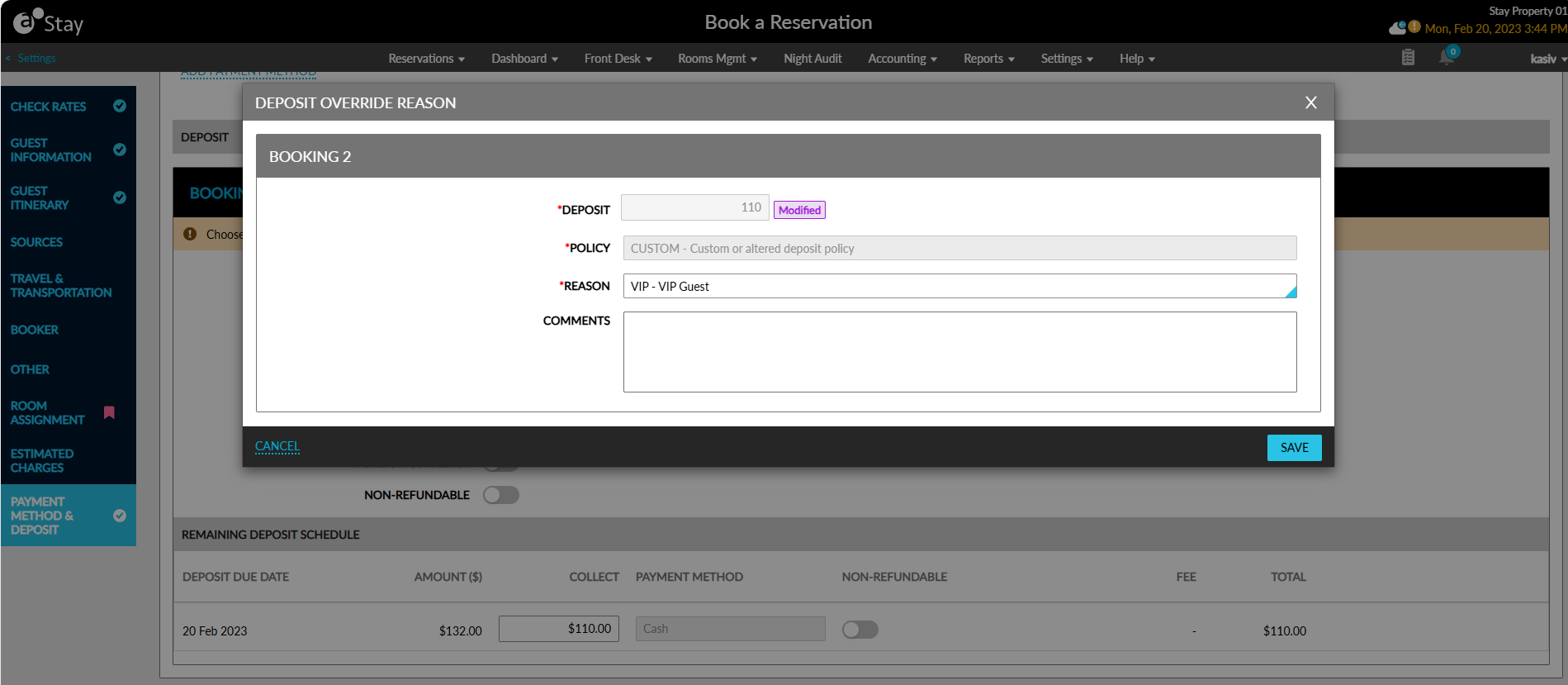
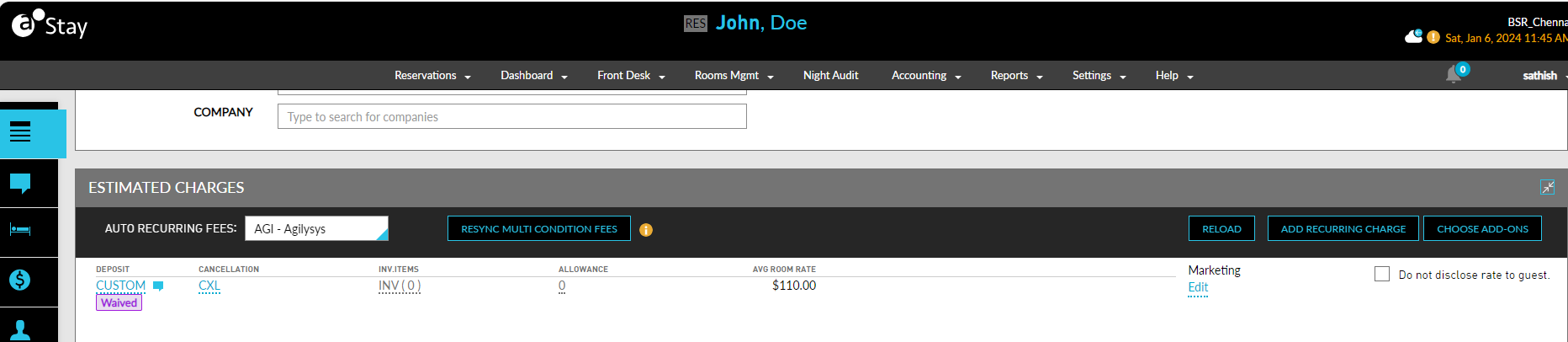
When users click Save, the reservation is booked with the overridden deposit amount. The Modified or Waived indicator is displayed for the deposit policy in the Estimated Charges section of the reservation.
Estimated Charges Tab of Book a Reservation Screen
When users book a reservation, the deposit policy/amount for the reservation can be modified or waived in the Estimated Charges section of the Book a Reservation screen. When users click the deposit amount displayed as a hyperlink in the Deposit field, the Deposit Override Reason pop-up screen appears. Users can modify/waive the deposit policy/amount in this screen and select a reason for the override. When users click Save, the deposit policy/amount is overridden and the Modified or Waived indicator is displayed next to the Deposit field in the screen.
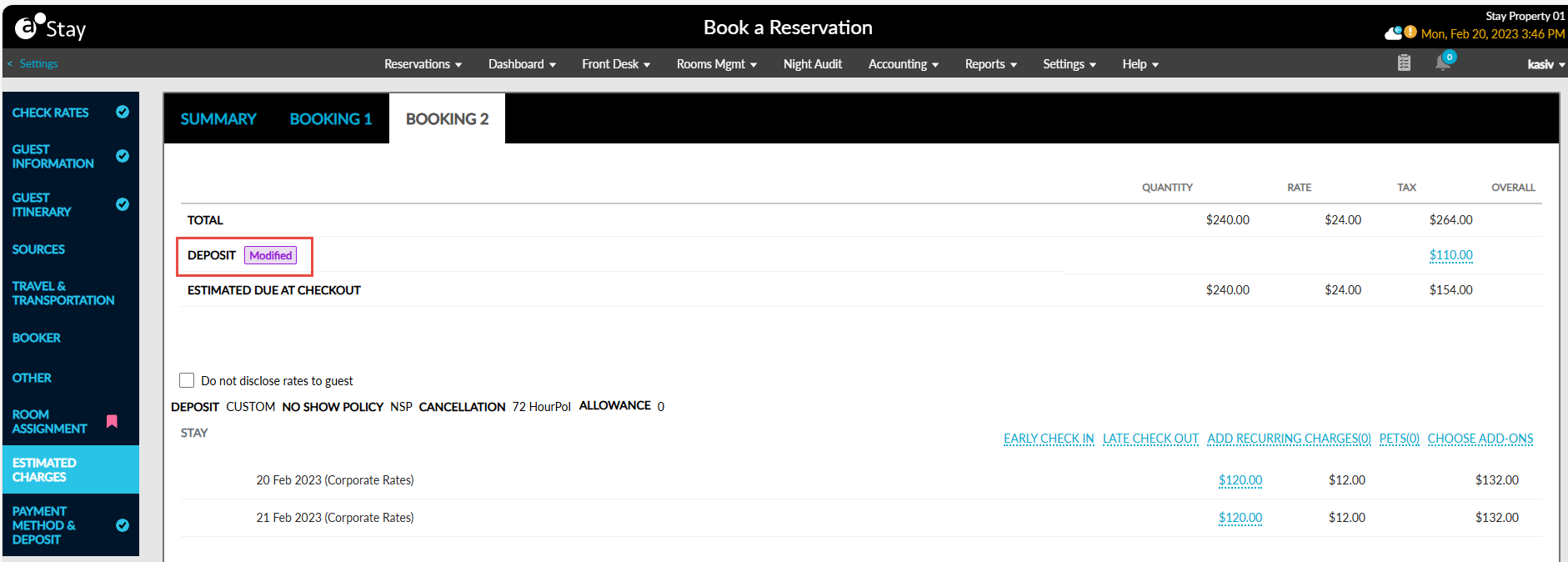
Once the reservation is booked, the Modified or Waived indicator is displayed for the deposit policy in the Estimated Charges section of the reservation.
Estimated Charges Section of Reservation
For booked reservations, the deposit policy/amount can be modified or waived from the Estimated Charges section. When users click the deposit policy displayed as a hyperlink in the Deposit column, the Deposit Override Reason pop-up screen appears. Users can modify/waive the deposit policy/amount in this screen and select a reason for the override. When users click Save, the deposit policy/amount is overridden and the Modified or Waived indicator is displayed below the deposit policy in the Deposit column.